
The history section
The history section
Message Express allows you to consult the history of all the transmission results dashboards for all messages sent (remember that when you press the Send Message button, a new tab appears in your browser to show you the transmission results in real time).
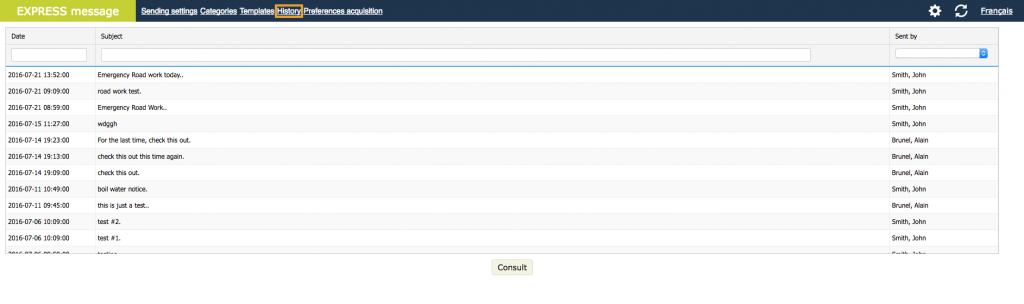
1. To access this section, click on the History link in the upper right-hand corner of the main interface, as shown above.
2. Then double-click on the message of your choice to access its results page. The View button also lets you see the dashboard.
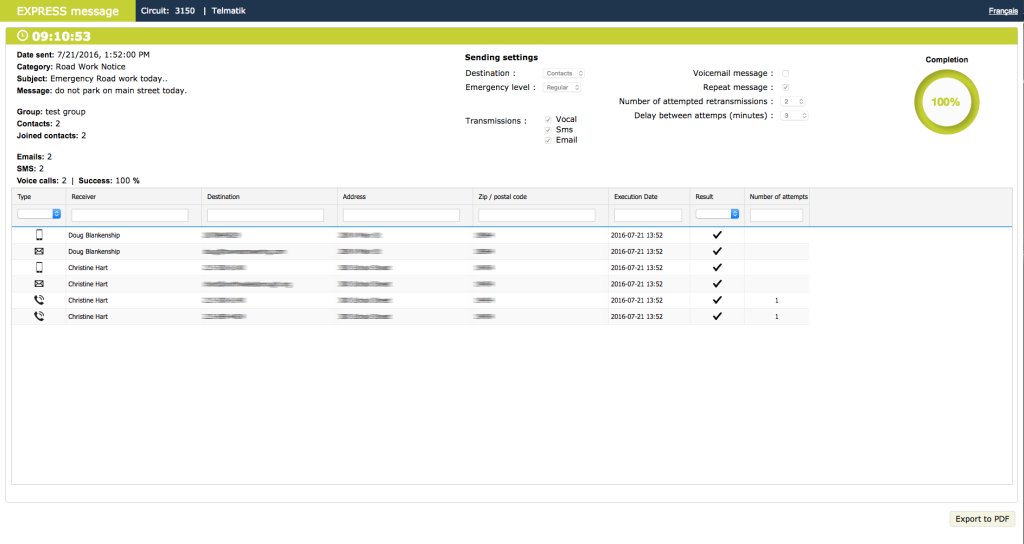
A. Below are the elements included in the dashboard:
- A timer in the upper left corner displays the time elapsed since the start of the transmission (it stops when the transmission is completed).
- The date and time of the transmission just below for easy future reference.
- The category of message in use.
- The subject and content of the message.
- The name of the attached group if applicable (a message can also be sent to a few recipients).
- The number of contacts included in the message.
- The number of contacts reached.
- The number of emails sent (an email is always considered a success).
- The number of text messages sent (a text message is always considered a success).
- The number of voice calls and the success of these calls in percentages.
- To better understand how the system considers a call a success or a failure, see the sending parameters in effect at the time of the transmission. These are displayed in the middle of the dashboard (more details about voice options here). As a general rule, a call is considered a failure if no one picks up and there is no voicemail or if the line is busy.)
- A call is considered successful if someone picks up or if a message is left in voicemail.
- Finally, on the right, you will see the completion percentage. It does not indicate the success of the entire transmission but rather an idea of what remains to be done before the transmission is completed.