
Sending and tracking a message
Sending and tracking a message
You probably gathered that all you have to do is click on Send message when everything is ready.

As you can see below, the Sending settings are displayed and can even be updated before you Continue with sending.
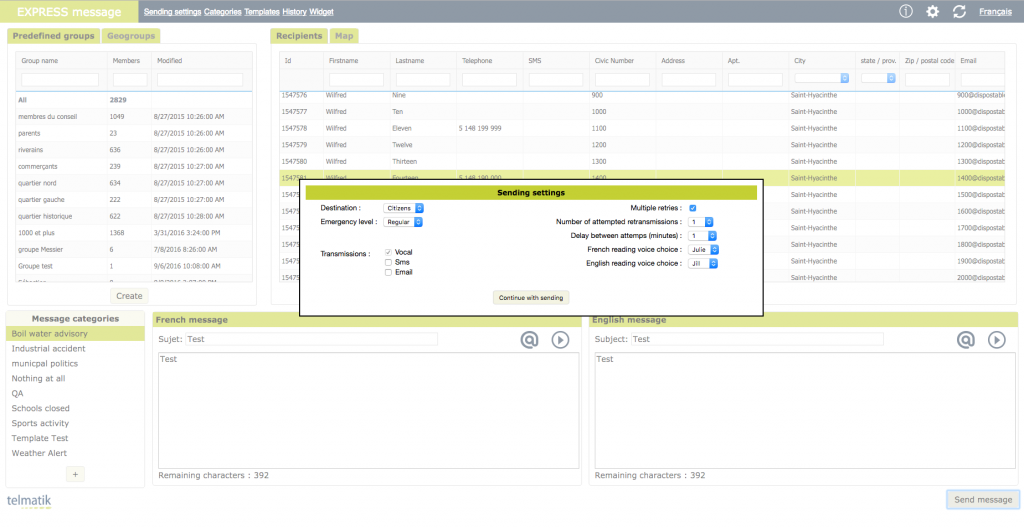
Once the transmission has started, a new browser tab is generated and it shows a dashboard page updated in real-time to display the results of each transmission. If you need to cancel the transmission at this point, you can click outside the Sending settings box shown above.
We see the icons used to specify which means of communication are being used. An envelope icon for email, a pictogram representing a wired telephone device for automated voice and a mobile phone for SMS.
Since the results page will also be available later on in the Message Express History Section, you do not have to save it.
However, in the bottom right-hand corner of the results page is a button that allows you to generate a PDF file from the contents of the recipient list. This is ideal, for instance, if you want to share a results page with a colleague who does not have access to the interface!